Visual Paradigm Installation and User's Guide
From KKM-STUDIO-WIKI
More actions
READ ME FIRST
- This tutorial only applies to the WINDOWS operating system, other operating systems have not yet been verified.
- This tutorial is based on this website to make additions and changes.
- Contact Shuokai Ma (s214919@student.dtu.dk) if you find a problem or have suggestions for this Wiki.
Visual Paradigm Installation
Download, Install and Activate Visual Paradigm
- Download the latest version of Visual Paradigm, and then install the Visual Paradigm by following the instructions of the installation wizard.
- Start Visual Paradigm. When you see the following screen, select Subscription/Academic License.
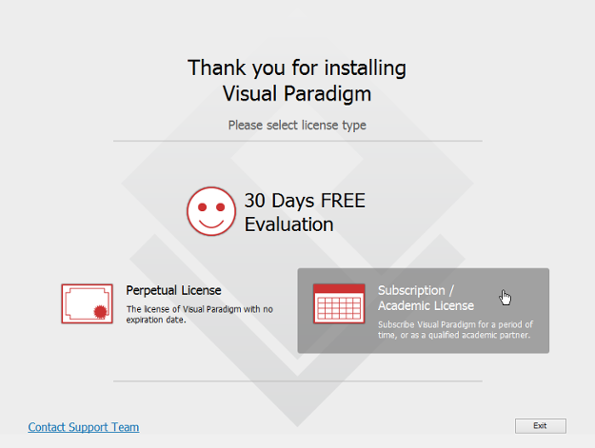
Select Subscription / Academic License - Expand Academic 'Training Partner Program License'.
- Copy the activation code from DTU Learn (Under Content -> UML Modelling Tools -> Visual Paradigm Academic License).
- Paste the activation code to the textbox called Activation Code. And then enter your name and email address.
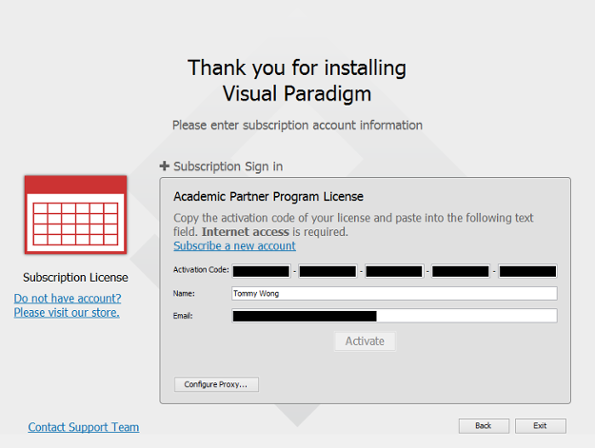
Activating Visual Paradigm - Click Activate. You are prompted for an activation code.
- Go to your email inbox and Check your new email for the verification code.
- Copy the verification code and paste it to Visual Paradigm.
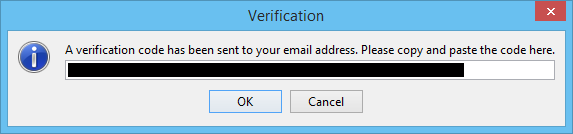
Pasting the verification code - Click OK to confirm. Visual Paradigm will be activated if the verification code is valid.


Visual Paradigm User's Guide
Create your first project in Visual Paradigm
To create a project, select Project -> New from the toolbar.

The New Project window appears.

| No. | Name | Description |
| 1 | Name | The name of the project. |
| 2 | Author | The person who creates the project. |
| 3 | Data type set | It lets you select the programming/scripting language for the project. The language you selected mainly affects class modelling. For example, the selectable visibilities and primitive types vary among languages. |
| 4 | Description | The project description. |
| 5 | Create Project Management Lookup | Check it to automatically fill the project management lookups such as iteration, version, etc with default lookup values. |
| 6 | Create Blank Project | Click to create the project. |
| 7 | Cancel | Click to cancel creating the project, and close the window. |
Enter the name of the project and your name. And then you should choose UML as the Data type set and click Create Blank Project.