Visual Paradigm Installation and User's Guide: Difference between revisions
From KKM-STUDIO-WIKI
More actions
| Line 19: | Line 19: | ||
= Visual Paradigm User's Guide = | = Visual Paradigm User's Guide = | ||
== Create your first project in Visual Paradigm == | == Create your first project in Visual Paradigm == | ||
To create a project, select '''Project -> New''' from the toolbar.[[File:Create a new project 33403.png| | To create a project, select '''Project -> New''' from the toolbar.[[File:Create a new project 33403.png|500px|center|thumb|Create a new project]] | ||
The '''New Project''' window appears.[[File:An overview of new project window 33404.png|500px|center| | The '''New Project''' window appears.[[File:An overview of new project window 33404.png|500px|center|thumb|An overview of New Project window]] | ||
{| class="wikitable" style="border-collapse: collapse; width: 100%; height: 184px;" | {| class="wikitable" style="border-collapse: collapse; width: 100%; height: 184px;" | ||
|- style="height: 23px;" | |- style="height: 23px;" | ||
| Line 57: | Line 57: | ||
|} | |} | ||
Enter the name of the project and your name. And then you should choose '''UML''' as the Data type set and click '''Create Blank Project'''. | Enter the name of the project and your name. And then you should choose '''UML''' as the Data type set and click '''Create Blank Project'''. | ||
== UML modelling == | == UML modelling == | ||
=== Use Case Diagram === | === Use Case Diagram === | ||
Revision as of 21:17, 9 February 2023
READ ME FIRST
- This tutorial only applies to the WINDOWS operating system, other operating systems have not yet been verified.
- This tutorial is based on this website to make additions and changes.
- Contact Shuokai Ma (s214919@student.dtu.dk) if you find a problem or have suggestions for this Wiki.
Visual Paradigm Installation
Download, Install and Activate Visual Paradigm
- Download the latest version of Visual Paradigm, and then install the Visual Paradigm by following the instructions of the installation wizard.
- Start Visual Paradigm. When you see the following screen, select Subscription/Academic License.
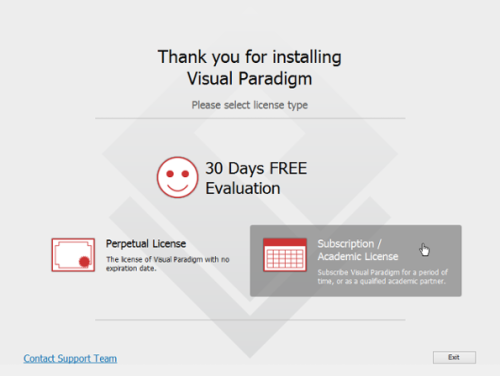
Select Subscription / Academic License - Expand Academic 'Training Partner Program License'.
- Copy the activation code from DTU Learn (Under Content -> UML Modelling Tools -> Visual Paradigm Academic License).
- Paste the activation code to the textbox called Activation Code. And then enter your name and email address.
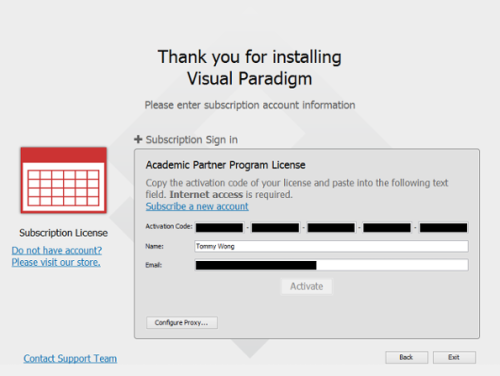
Activating Visual Paradigm - Click Activate. You are prompted for an activation code.
- Go to your email inbox and Check your new email for the verification code.
- Copy the verification code and paste it to Visual Paradigm.
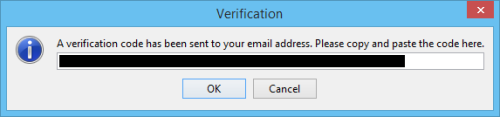
Pasting the verification code - Click OK to confirm. Visual Paradigm will be activated if the verification code is valid.


Visual Paradigm User's Guide
Create your first project in Visual Paradigm
To create a project, select Project -> New from the toolbar.

The New Project window appears.

| No. | Name | Description |
| 1 | Name | The name of the project. |
| 2 | Author | The person who creates the project. |
| 3 | Data type set | It lets you select the programming/scripting language for the project. The language you selected mainly affects class modelling. For example, the selectable visibilities and primitive types vary among languages. |
| 4 | Description | The project description. |
| 5 | Create Project Management Lookup | Check it to automatically fill the project management lookups such as iteration, version, etc with default lookup values. |
| 6 | Create Blank Project | Click to create the project. |
| 7 | Cancel | Click to cancel creating the project, and close the window. |
Enter the name of the project and your name. And then you should choose UML as the Data type set and click Create Blank Project.
UML modelling
Use Case Diagram
Creating a use case diagram
Perform the steps below to create a UML use case diagram in Visual Paradigm.
- Select Diagram > New from the application toolbar.
- In the New Diagram window, search and select Use Case Diagram, and then click Next.
- You can choose to create a black diagram or use template. We can choose to create a black diagram here.
- Enter the diagram name and maybe also description. The Location field enables you to select a model to store the diagram. We are not going to change this value right now.
- Click OK.
